Introduction-:
Google Maps is great for finding fast routes, but searching for directions every time can be frustrating. To save time, you can create and store custom routes, pin them to your home screen, or share them with friends. Here is how to easily save and share your directions.
You can only save routes using the mobile app, not the web. This feature works for driving and public transport, but note that saved driving routes will always default to starting from your current location.
How to Save a Google Maps Route on Android or iPhone
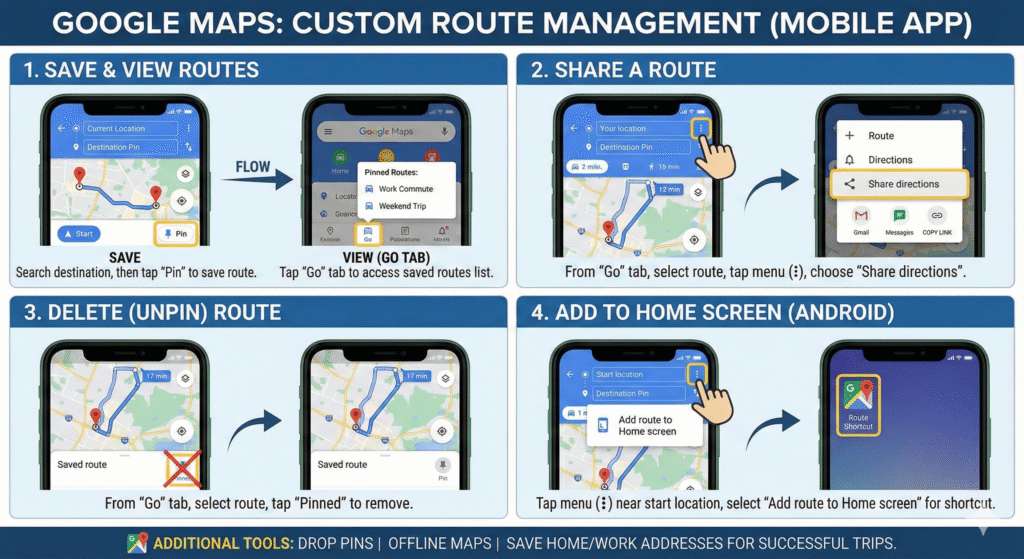
Saving Google Map routes on Android or iPhone is a straightforward process. You can use the pin option to save any route you create on Google Maps.
- Launch Google Maps on your phone.
- Tap the search box to reveal the existing saved location and anything you have searched earlier.
- Enter your destination to load a possible route from your current position to your entered location.
- Tap Pin from the bottom list of options to save your route.
If you care about your privacy, you can delete your Google Maps location history to ensure no one can unwillingly track you or know about your whereabouts.
How to View a Saved Google Maps Route on Android or iPhone
Viewing your saved or pinned routes on Google Maps is equally easy.
- Launch Google Maps.
- On the homepage, tap Go at the bottom to find a list of all pinned routes.
- Select a route from the list to view it on Google Maps.
How to Share a Saved Google Maps Route
You can share all pinned or saved routes on Google Maps by following the instructions below:
- Go to Google Maps.
- Tap the Go menu at the bottom of the home page to find a list of all saved routes.
- Select the route you want to share.
- Tap the three vertical dots given alongside the Your location field.
- Choose Share directions from the popup options.
- On the Share popup, followed by the app through which you want to share your route with someone and send it to them.
How to Delete a Saved Route on Google Maps
To delete a saved route on Google Maps, you need to unpin them on Google Maps.
- Tap Go from the bottom tab of the Google Maps app.
- Select a route you want to delete or unpin from saved routes.
- Tap Pinned at the bottom right to remove it from saved routes.
How to Save a Google Maps Route to Home screen on Android
If you are an Android user, Google Maps allows you to add a Google Maps route shortcut to your phone’s home screen. Here’s how:
- Open Google Maps on your Android phone.
- Tap the three vertical dots alongside the start location field.
- Choose Add route to Home screen from the popup options. This will create a shortcut to your route, which you can find on your phone’s home screen.
Google Maps Has Everything to Make Your Trips a Success
Google Maps offers other helpful travel tools. You can drop pins to mark specific locations, use offline maps when you have no signal, and save your home and work addresses for easier navigation.