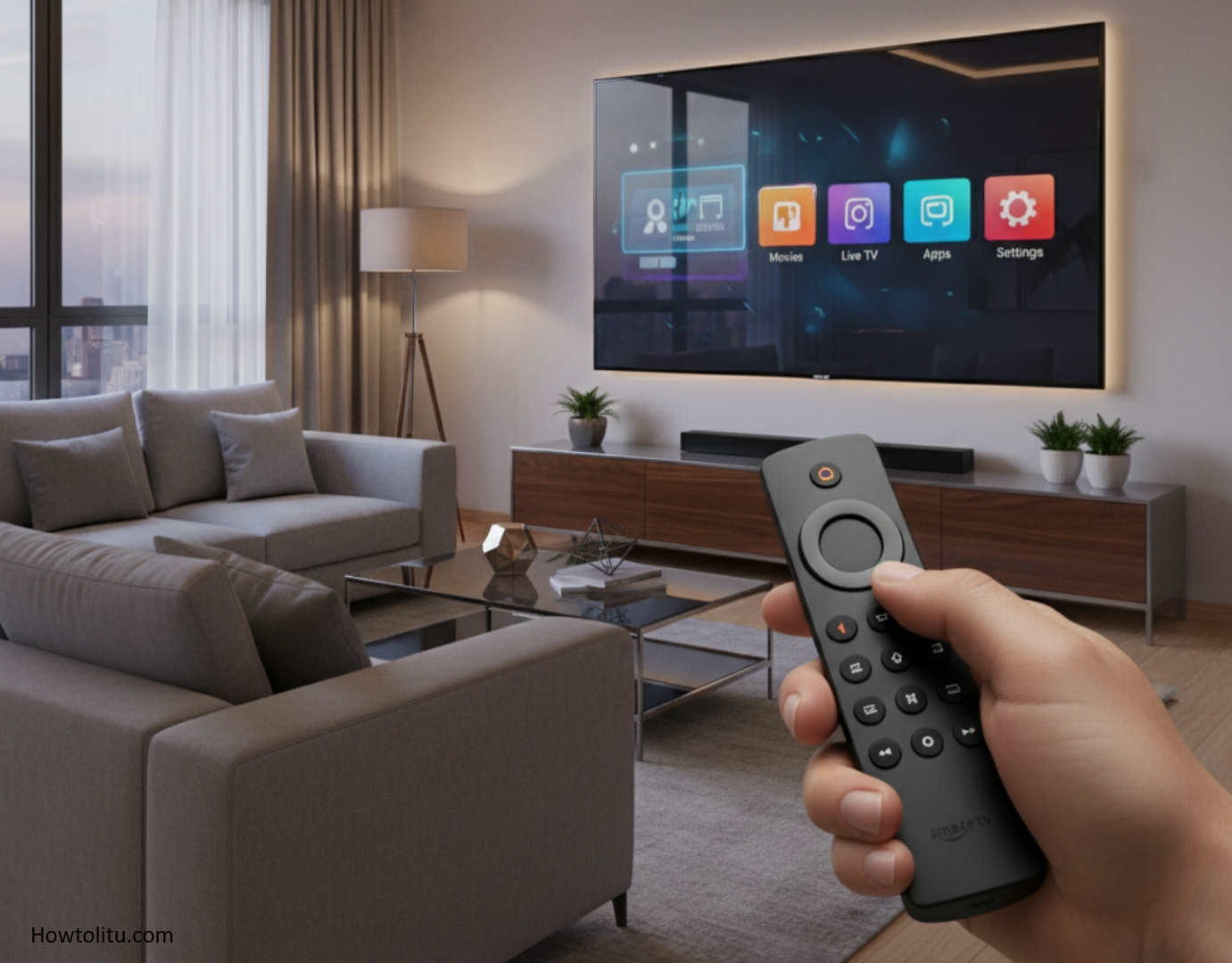
LG makes some of the best and most popular smart TVs in the world. If you have a smart TV, there’s no need for a streaming stick like Fire TV. But what if you have both devices and want to play them together on your LG smart TV? In this article, we’ll walk you through how to use your Amazon Fire TV Stick with your LG smart TV.
Compatibility and Requirements
if you have a newer LG Smart TV with an HDMI port, your problem will be solved. You should know that not all LG TVs will be compatible with the Fire Stick.
Streaming devices and services require an internet connection to run. You’ll need internet access to use the Fire Stick. If you want to watch your favorite movies and TV shows in HD, you should choose at least a mid-range internet plan with good upload and download speeds.
Finally, to use the Fire Stick, you’ll need to create an Amazon account.
Initial Setup & Connection
What You’ll Need:
- Your LG Smart TV (any model with an HDMI port).
- Amazon Fire TV Stick (and its included power adapter).
- The remote control that came with the Fire Stick.
- At least one free HDMI port on your TV.
- A stable Wi-Fi internet connection.
Step-by-Step Connection:
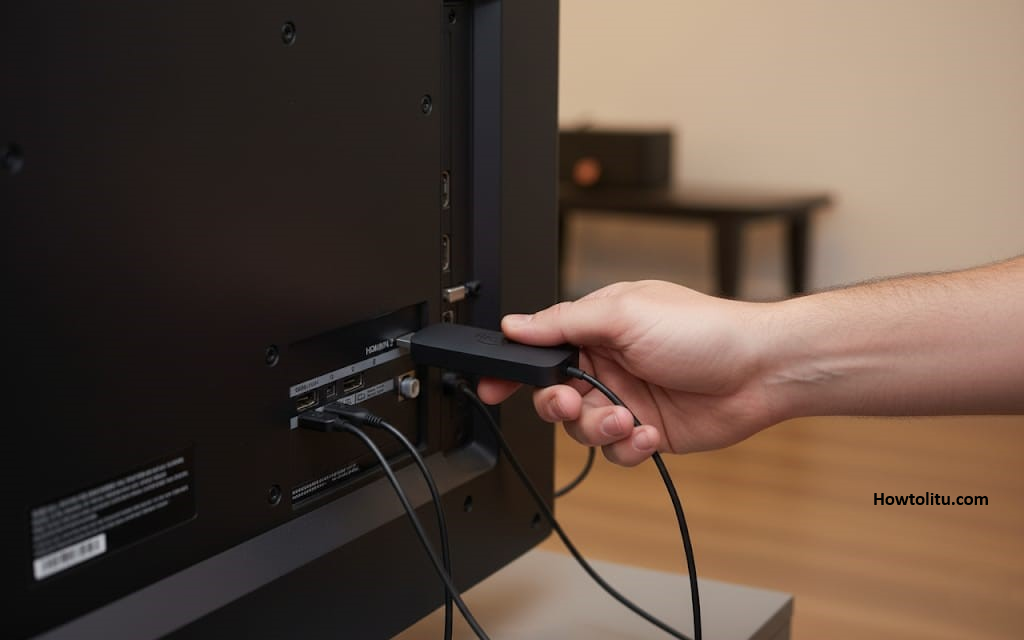
- Plug the Fire Stick into an HDMI Port: Locate an HDMI port on the back or side of your LG TV. Plug the Fire Stick directly into it.
- Pro Tip: Note which HDMI port you use (e.g., HDMI 1, HDMI 2). You’ll need to select this source later.
- Connect the Power: Plug the included USB cable into the Fire Stick and the other end into the power adapter. Then, plug the power adapter into a wall outlet.
- Crucial: Do not try to power the Fire Stick from your TV’s USB port. It often doesn’t provide enough power, leading to performance issues.
- Turn On Your TV and Switch Inputs: Use your LG TV remote to turn on the TV. Press the Input or Source button and select the HDMI port where you plugged in the Fire Stick.
- Follow the On-Screen Setup:
- You should now see the Amazon Fire TV setup screen.
- Insert the batteries into your Fire Stick remote. It should automatically pair with the Stick.
- Select your language.
- Connect to your Wi-Fi network and enter the password.
- Log in to your Amazon account. If you’re a Prime member, this will automatically give you access to Prime Video.
- Optional but Recommended Steps:
- Register Your Device: This happens automatically when you log in.
- Set up Alexa Voice Profile: The guide will walk you through optimizing the voice remote for you.
- Install Apps: The setup may suggest popular apps like Netflix, Disney+, and Hulu. You can install them now or later.
Conclusion
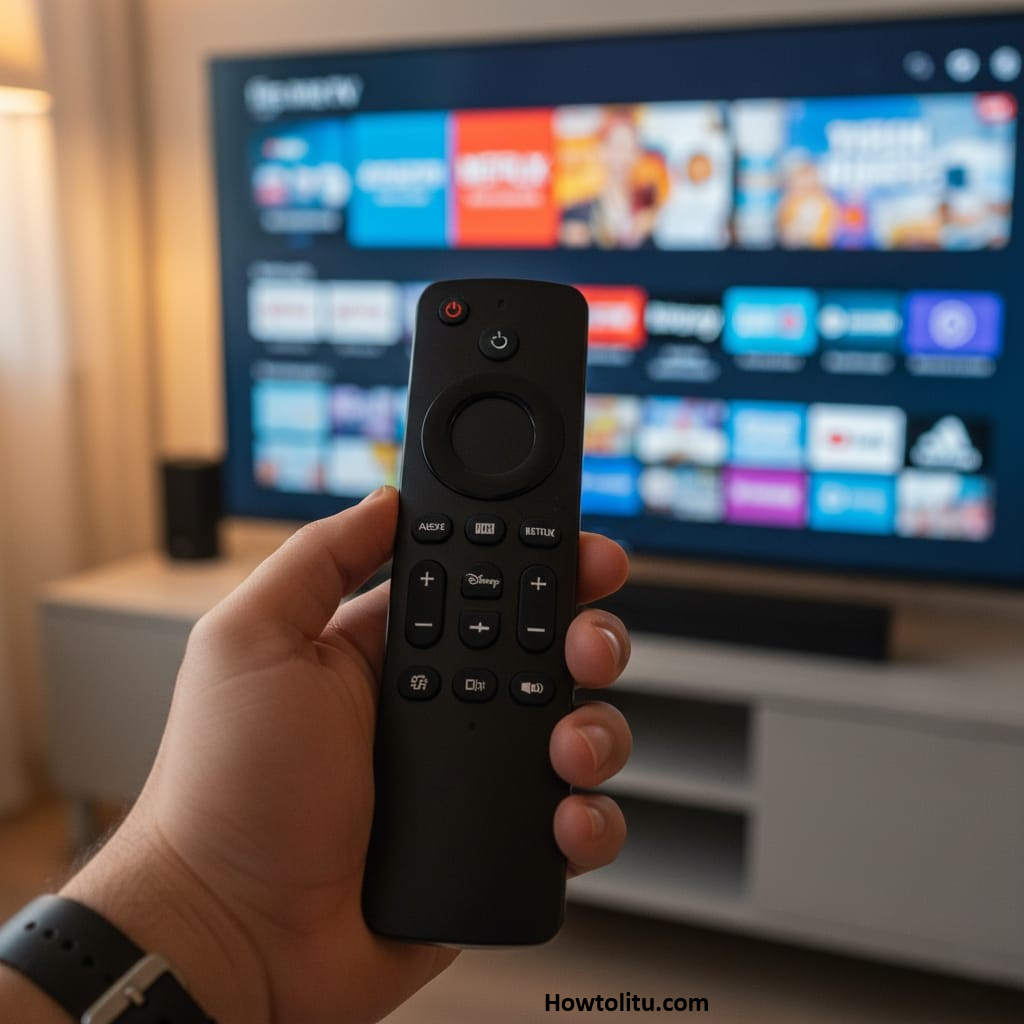
We’ve explained to you how to set up your Fire Stick in a simple way. I apologize if I made any mistakes. The setup process is quick—simply plug the device into an HDMI port, connect it to power, and follow the on-screen instructions. By enabling features like SimpleLink (HDMI-CEC), your Fire Stick remote seamlessly controls your TV’s power and volume, providing a unified and convenient viewing experience.