introduction -:
Knowing your PHP version in WordPress is important for keeping your website secure, fast, and compatible with the latest plugins and themes. PHP is the core programming language that powers WordPress, and running an outdated version can cause performance issues or security risks. In this guide, we’ll show you simple ways to check your current PHP version—whether through your WordPress dashboard, hosting control panel, or a plugin.
Method 1 – Site Health (Fastest)
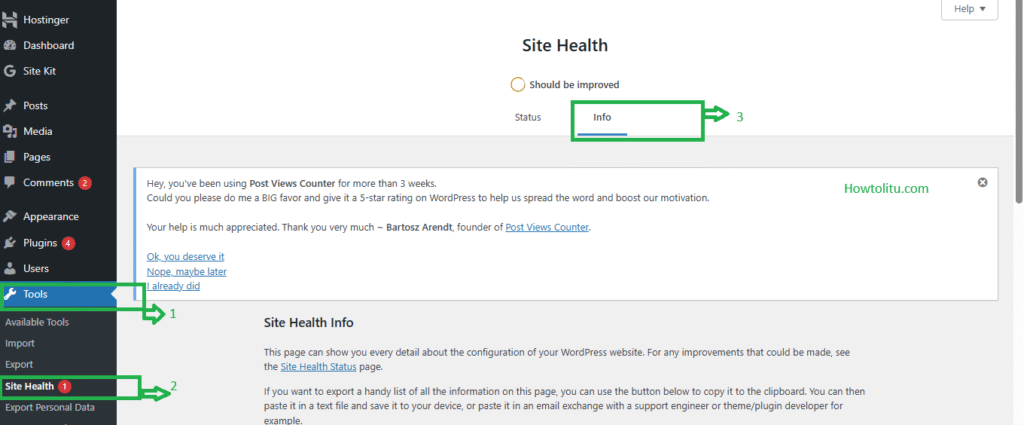
Log in → Dashboard
Click Tools → Site Health → Status
Look for “PHP version” card. ![screenshot]
Method 2 – Detailed Info Tab
Tools → Site Health → Info
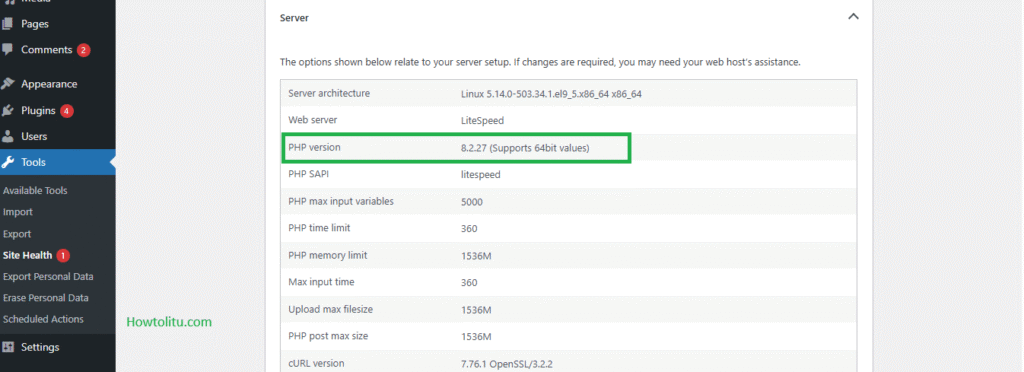
Expand “Server” → PHP version.
Method 3 – One-Line PHP File
<?php phpinfo(); ?>
Create phpinfo.php via File Manager or FTP.
Visit yoursite.com/phpinfo.php → search “PHP Version”.
Delete the file immediately after checking.
Using the PHP Info File
Method 4 – Hosting Panel
| Host | Path |
|---|---|
| SiteGround | Site Tools → PHP Manager |
| Bluehost | cPanel → PHP Selector |
| Hostinger | hPanel → Files → File Manager. |
| WP Engine | User Portal → PHP version |
If you are tech-savvy, creating a PHP info file is another way to check your WordPress PHP version. Follow these steps to use the file:
1 . Create a new file in Notepad (or a similar text editor) and name it phpinfo.php.
2. Add this code: <?php phpinfo(); ?> and save it.
3. Upload it to your web server with an FTP (File Transfer Protocol) client.
4. Access the file via your browser (http://yourdomain.com/phpinfo.php).
The open page will display the PHP version and other PHP configuration info. After checking your PHP version, delete this file so you won’t have to worry about unwanted eyes prying into it.
Method 4 – Via Hosting Control Panel
Most hosting providers also have a control panel (such as cPanel) where you can find the PHP version used by your WordPress installation. The specific steps will vary with the hosting provider. Here are the general steps:
Log in to your hosting account.
Look for sections like Software, PHP Version Manager, or Settings & Packages.
Click Packages and view or manage your PHP version.
This method involves accessing your WordPress hosting account. It’s a bit more technical, but it gives you greater control — especially if you’re planning to make upgrades later.
How to Update the PHP Version
If your WordPress site is running on an outdated PHP version, it’s a good idea to update it to avoid potential security risks. To do this, you’ll need to log in to your hosting account’s cPanel. The exact steps can vary depending on your hosting provider, but the general process should be similar to the one outlined below.
Here’s how you can do it:
1. Log in to your hosting account.
2. Navigate to a section labeled Software, PHP Version Manager, or Settings & Packages.
3. Go to Packages, click Modify, and choose the PHP version you want to use.
Stay Ahead With PHP Updates
Keeping your WordPress site healthy means staying on top of PHP updates. Updating regularly not only improves your site’s performance but also keeps it safe from security threats. Make it a habit to check for new PHP versions and update your site using the steps we mentioned whenever a new one becomes available.
FAQs
Q: Can I update my WordPress PHP version myself, or does my host have to do it?
A: It depends on your hosting plan. If you’re on a shared hosting plan, your host might handle PHP updates for you. However, in most cases, you can still update the PHP version yourself through your hosting dashboard.Q: Is it risky to use an outdated PHP version for WordPress?
A: Yes, absolutely. Running an old PHP version can expose your site to security threats like cross-site scripting (XSS) and SQL injection. It can also slow down your site and use more server resources, affecting overall performance.